On this page
Before you start
Use the active order that contains the endpoint you want this profile to use.
HostProxy server hostname or address shown in DashboardPortThe separate connection port for the selected protocolUsernameThe authentication username from the active orderPasswordThe authentication password from the active order
Treat the username and password as private credentials. Do not place them in screenshots, tickets, or public messages.
If you do not have an order yet, review current locations, line types, and prices before returning to this guide. View static residential IPs
Map the GetIPProxy fields
Enter each value in its matching field. Do not add a protocol prefix to the host unless the browser explicitly requests a complete URL.
| GetIPProxy value | Browser field | What to enter |
|---|---|---|
Host | Proxy IP | Proxy server hostname or address shown in Dashboard |
Port | Proxy port | The separate connection port for the selected protocol |
Username | Proxy username | The authentication username from the active order |
Password | Proxy password | The authentication password from the active order |
HostProxy IP- Proxy server hostname or address shown in Dashboard
PortProxy port- The separate connection port for the selected protocol
UsernameProxy username- The authentication username from the active order
PasswordProxy password- The authentication password from the active order
Configure the proxy in Incogniton
UI labels can change between client versions. Use the referenced path as the current starting point and confirm the saved connection before opening the profile.
- 1
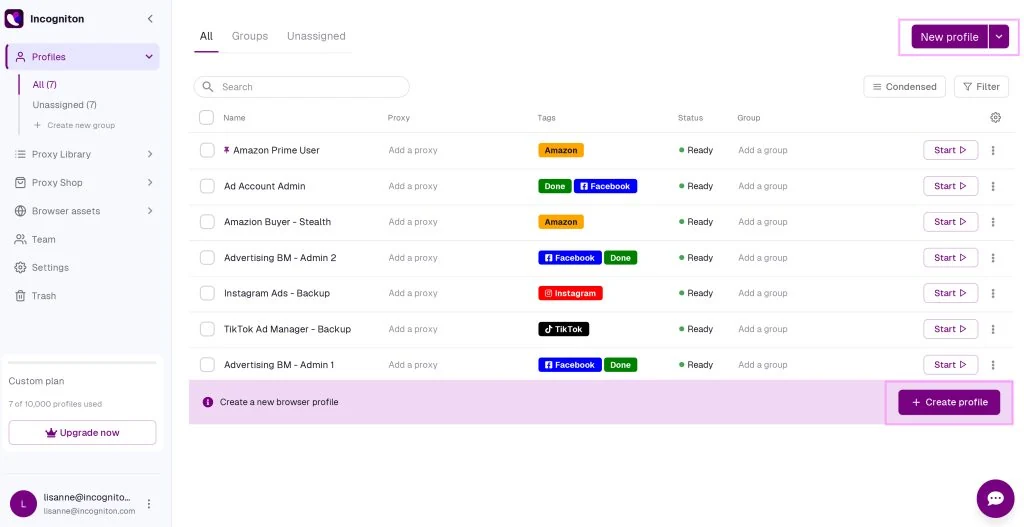
Open New profile
Open New profile in Incogniton and continue to Proxy.
- 2
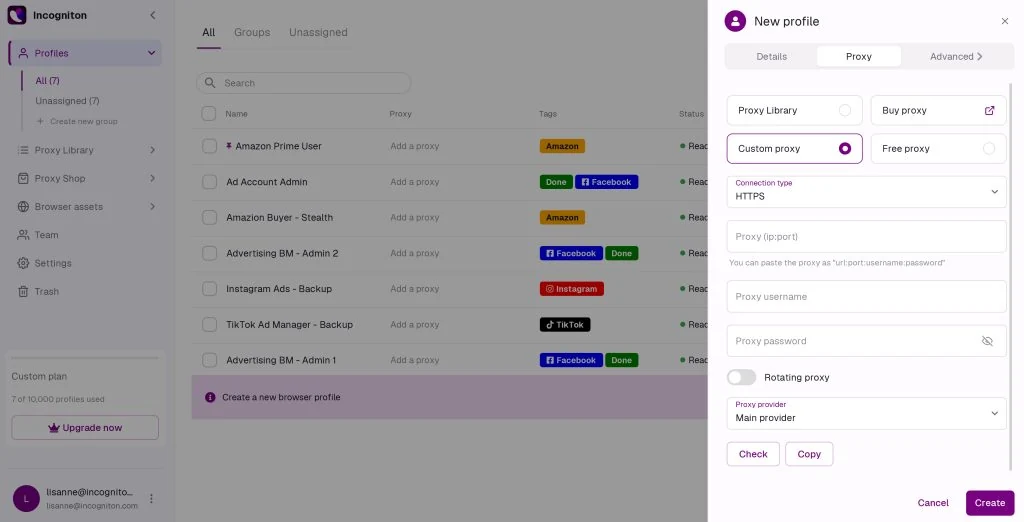
Choose the protocol in Connection type
Under Connection type, select HTTP or SOCKS5 to match the connection you intend to use.
- 3
Enter Proxy IP and Proxy port
Enter the Dashboard host in Proxy IP and the connection port in Proxy port.
- 4
Add Proxy username and Proxy password
Enter the Dashboard username in Proxy username and password in Proxy password.
- 5
Run Check proxy
Run Check proxy and confirm that the detected exit region matches the resource you purchased.
- 6
Save with Create profile and open the profile
Select Create profile, then use Start to open the configured profile.
Incogniton may show the proxy editor as an Add Proxy action inside the new-profile flow; the same four credential fields are required.
Test the connection and verify the exit
Run Check proxy in Incogniton. After it succeeds, open the profile and use an independent IP check to confirm the exit IP and country or region match the purchased resource.
- Check proxyRun Check proxy and confirm that the detected exit region matches the resource you purchased.
- StartSelect Create profile, then use Start to open the configured profile.
- Verify the exitRun Check proxy in Incogniton. After it succeeds, open the profile and use an independent IP check to confirm the exit IP and country or region match the purchased resource.
Troubleshooting
| Symptom | Possible cause | Fix |
|---|---|---|
| Check proxy fails after the proxy fields are saved | A previous provider, inherited proxy, or Incogniton-specific profile setting is still active. | If Incogniton can resolve the host but cannot authenticate, type the Dashboard username and password again instead of pasting a combined proxy string. |
| Protocol or format error | Connection type does not match the HTTP(S) or SOCKS5 endpoint, or the host includes an unwanted protocol prefix. | Select one of HTTP, SOCKS5 and keep Proxy IP and Proxy port in separate fields. |
| Authentication failed | The username or password is incomplete, combined into one proxy string, or belongs to an inactive order. | Re-enter the Dashboard values separately in Proxy username and Proxy password, then confirm that the order is active. |
| The profile opens in the wrong region | The saved profile is using different credentials from the endpoint that was tested. | Edit the same profile, run Check proxy again, save with Create profile, and compare the detected region with the purchased resource. |
| Connection timeout | A local firewall, VPN, global proxy, or client network rule is intercepting the connection. | Temporarily rule out the conflicting network layer, reopen Proxy, and repeat Check proxy. |
- Check proxy fails after the proxy fields are saved
- Possible causeA previous provider, inherited proxy, or Incogniton-specific profile setting is still active.
- FixIf Incogniton can resolve the host but cannot authenticate, type the Dashboard username and password again instead of pasting a combined proxy string.
- Protocol or format error
- Possible causeConnection type does not match the HTTP(S) or SOCKS5 endpoint, or the host includes an unwanted protocol prefix.
- FixSelect one of HTTP, SOCKS5 and keep Proxy IP and Proxy port in separate fields.
- Authentication failed
- Possible causeThe username or password is incomplete, combined into one proxy string, or belongs to an inactive order.
- FixRe-enter the Dashboard values separately in Proxy username and Proxy password, then confirm that the order is active.
- The profile opens in the wrong region
- Possible causeThe saved profile is using different credentials from the endpoint that was tested.
- FixEdit the same profile, run Check proxy again, save with Create profile, and compare the detected region with the purchased resource.
- Connection timeout
- Possible causeA local firewall, VPN, global proxy, or client network rule is intercepting the connection.
- FixTemporarily rule out the conflicting network layer, reopen Proxy, and repeat Check proxy.
What a static residential IP changes
It can help with
- Giving one browser profile a dedicated residential network exit during the purchased term
- Keeping the same assigned IP while the order is active, with renewal support when eligible
- Matching the profile network exit to a purchased country or region
It does not guarantee
- Account approval, account safety, or freedom from platform review or restrictions
- Isolation of cookies, device fingerprints, identity, payment details, permissions, or behavior
- Permission to use a service in ways that violate law or the target platform rules
Check the browser’s current interface
Browser controls and labels can change between versions. Use the available official sources below to confirm the current product and documentation before following this independent setup guide.
- Official website Incogniton official website
Frequently asked questions
Which proxy protocols can I configure in Incogniton?
This guide maps HTTP, SOCKS5 in Incogniton. Select the same protocol as the GetIPProxy connection you are testing.
Where do I enter GetIPProxy credentials in Incogniton?
Open New profile, continue to Proxy, and map the Dashboard host, port, username, and password to Proxy IP, Proxy port, Proxy username, and Proxy password.
Why does Check proxy fail?
If Incogniton can resolve the host but cannot authenticate, type the Dashboard username and password again instead of pasting a combined proxy string. Also confirm that the order is active and that a local VPN, firewall, or global proxy is not replacing the profile connection.
Should I choose HTTP, HTTPS, or SOCKS5 in Incogniton?
Choose the same protocol as the active GetIPProxy endpoint. If the Dashboard order gives you a SOCKS5 endpoint, select SOCKS5 in Incogniton; if it gives you an HTTP(S) endpoint, select the matching HTTP or HTTPS option.
What credential format should I use in Incogniton?
Use the four separate values from Dashboard: host, port, username, and password. If Incogniton asks for one proxy string, keep the same order as host:port:username:password and do not publish the real credentials in screenshots or tickets.
Can one static residential IP be used for multiple Incogniton profiles?
A static residential IP can technically be entered in more than one profile, but that also means those profiles share the same network exit. Use a separate dedicated IP when different accounts, stores, clients, or business environments need separate exits.
How do I check that Incogniton is using the purchased exit?
First run Check proxy inside Incogniton. After the test succeeds, open the profile and use an independent IP check page to confirm that the exit IP and country or region match the GetIPProxy resource you purchased.
Does using GetIPProxy in Incogniton guarantee account safety?
No. A dedicated static residential IP controls the network exit. Browser fingerprints, cookies, identity, payment details, permissions, behavior, and platform decisions remain separate factors.