
On this page
Check your working node and proxy details
You need a node that already connects in Shadowrocket and the SOCKS5 details for your active GetIPProxy proxy.
Test the existing node first
Connect with the existing node on its own to confirm it works. Turn the main switch off before making changes. You will select this node under “代理通过” (Proxy Through).
GetIPProxy connection details
In Dashboard → My Proxies, find the proxy address, port, username, and password you need for this configuration.

Keep your proxy username and password private. Do not share screenshots that show them.
Sign in to Dashboard →Add the GetIPProxy proxy in Shadowrocket
The screenshots show Shadowrocket in Simplified Chinese. The setting names may differ in other languages or app versions.
Keep the connection off while you add and check the new node.
The screenshots show the iPhone layout in Simplified Chinese. The same settings are available on iPad, though the layout may differ. Follow the markings and use your own proxy details, not the example values shown.
- 1
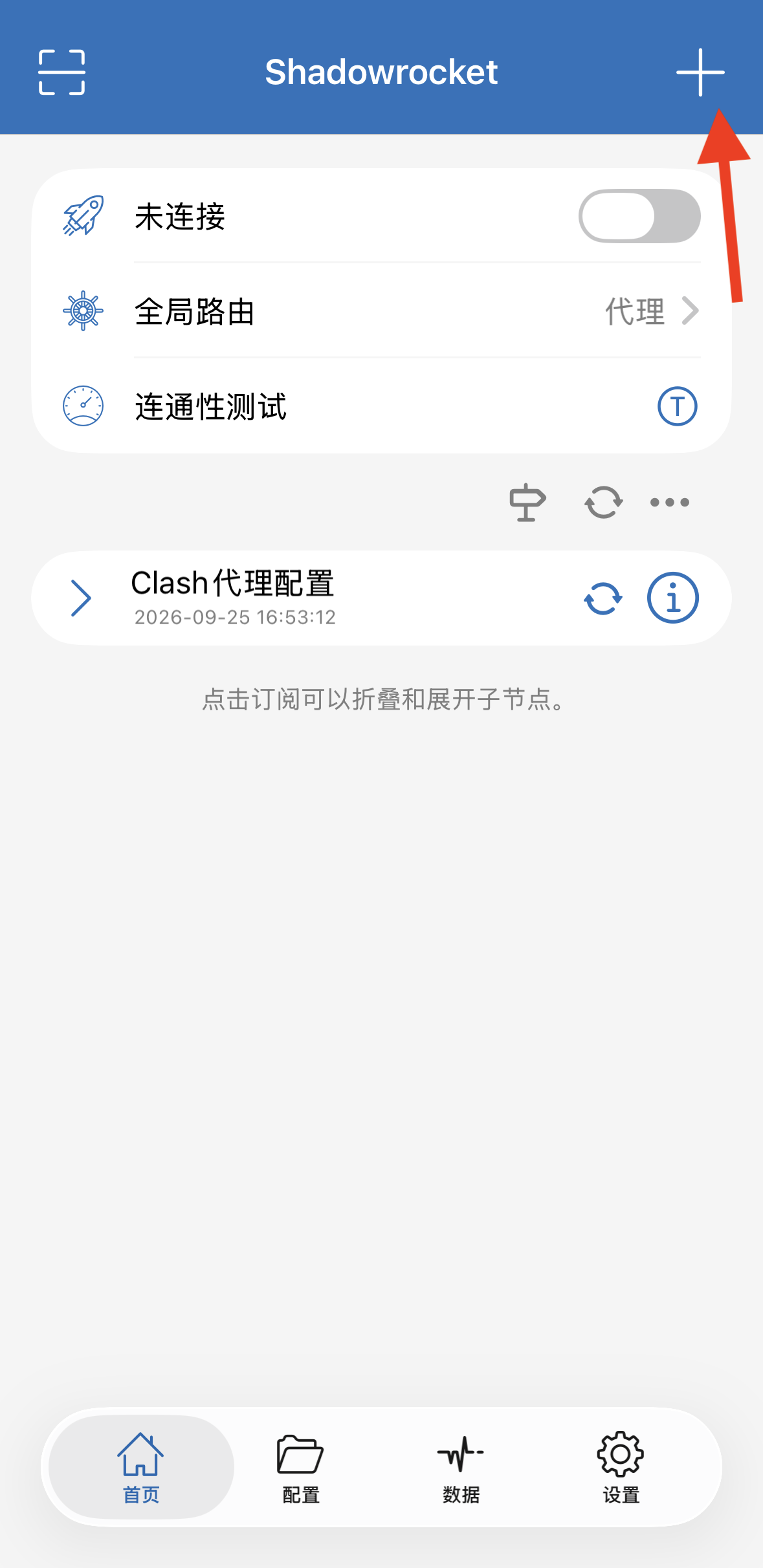
Tap the + button
On the Home screen, tap + in the upper-right corner to add a node.
- 2
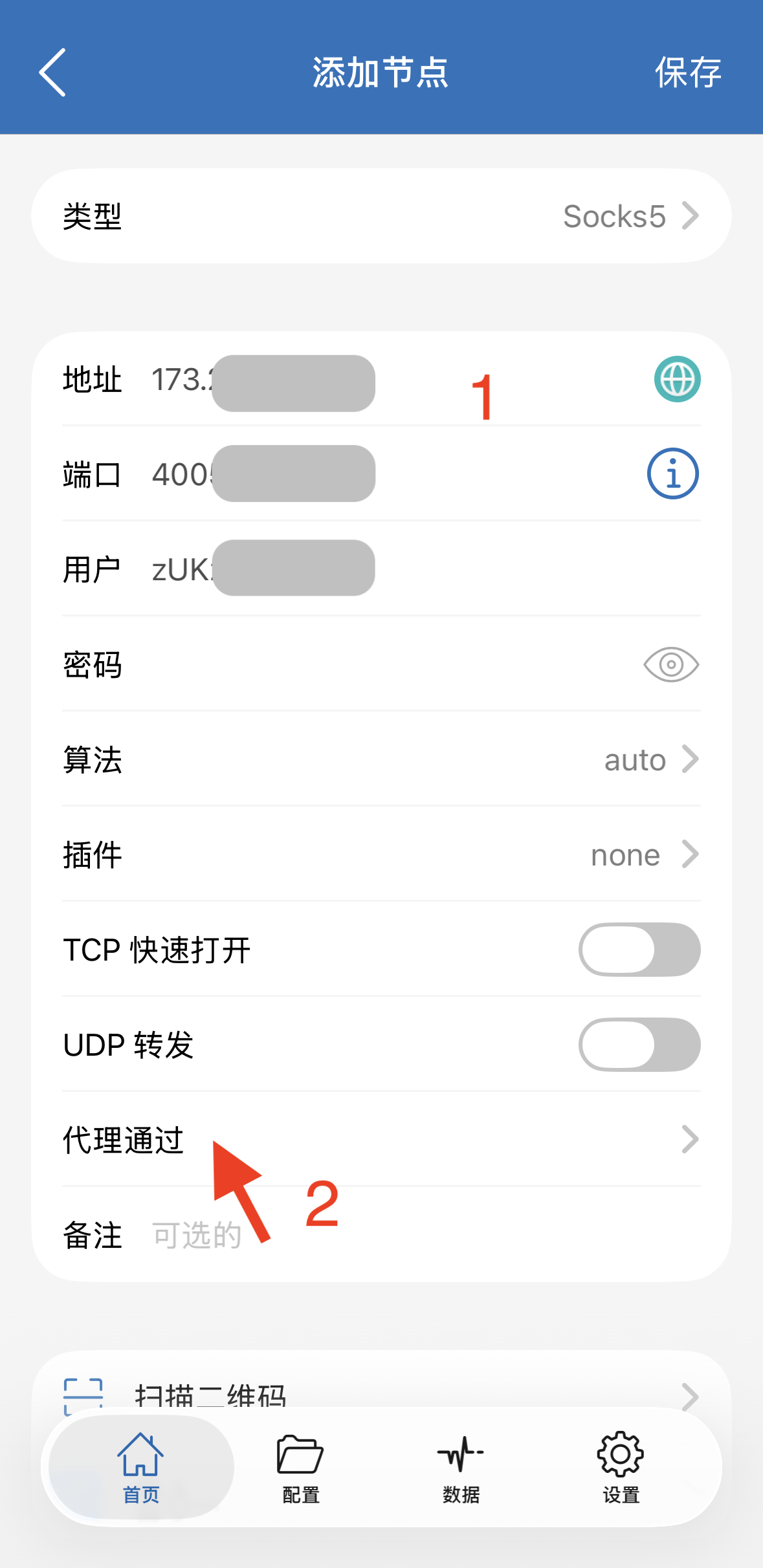
Choose Socks5 and enter your details
Set Type (类型) to Socks5. Copy Address (地址), Port (端口), User (用户), and Password (密码) from Dashboard → My Proxies into the matching fields. Do not change the other options shown.
- 3
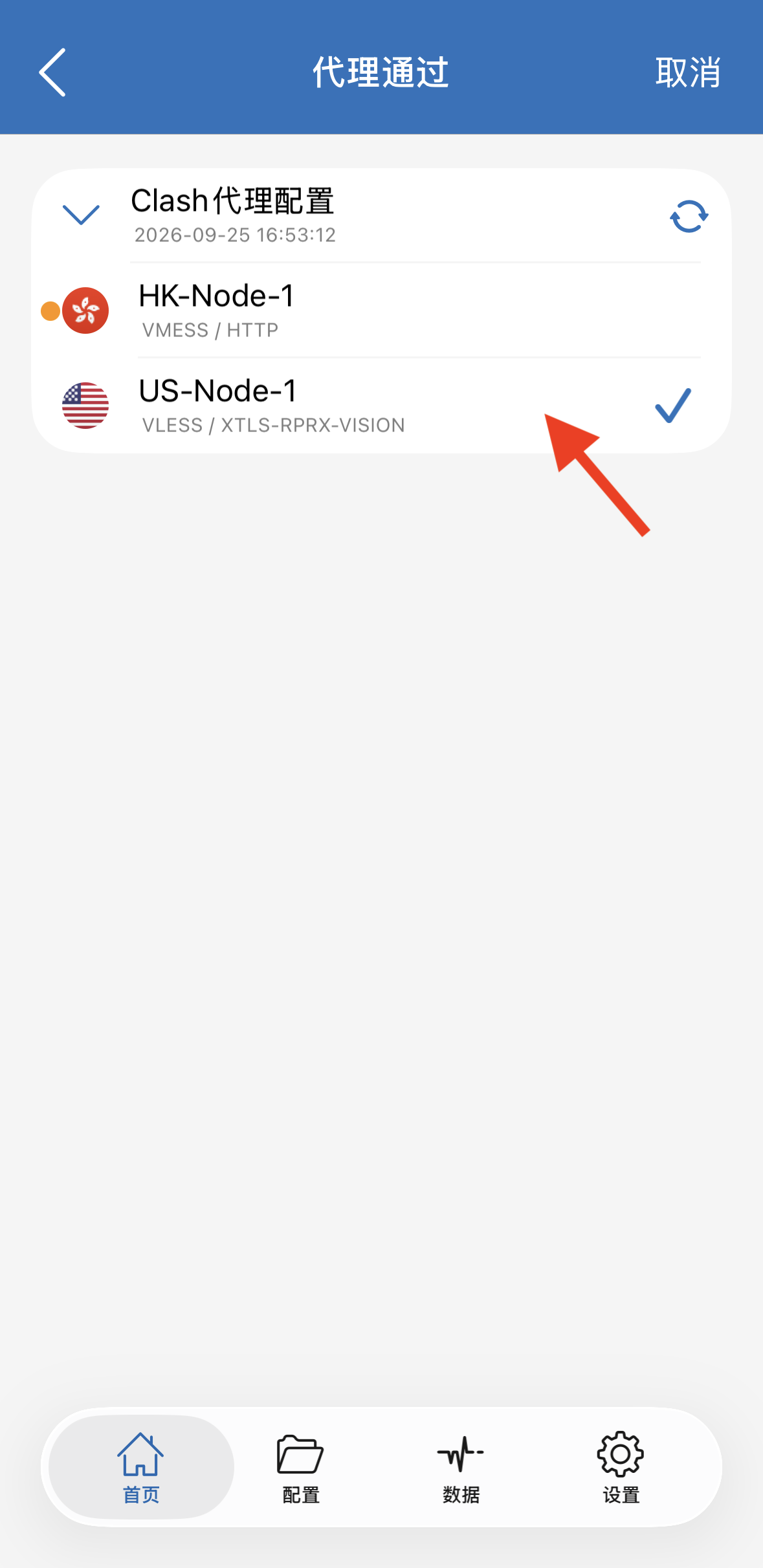
Choose the working node under Proxy Through
Tap 代理通过 (Proxy Through), then select the existing node you tested. This node connects to GetIPProxy first; the new Socks5 node remains the final exit.
- 4
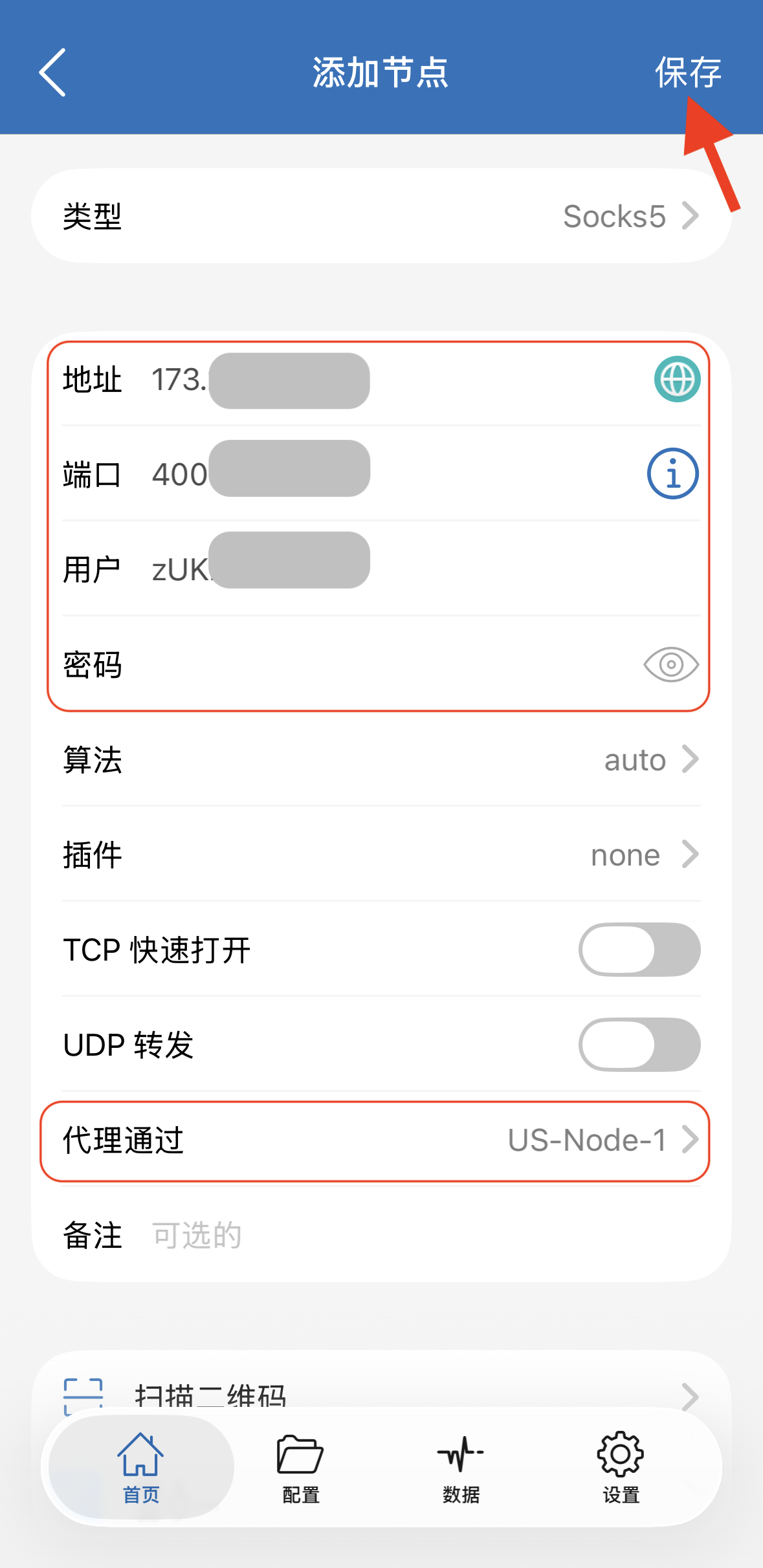
Check the details and tap Save
Confirm the address, port, user, password, and selected Proxy Through node, then tap 保存 (Save) in the upper-right corner.
- 5
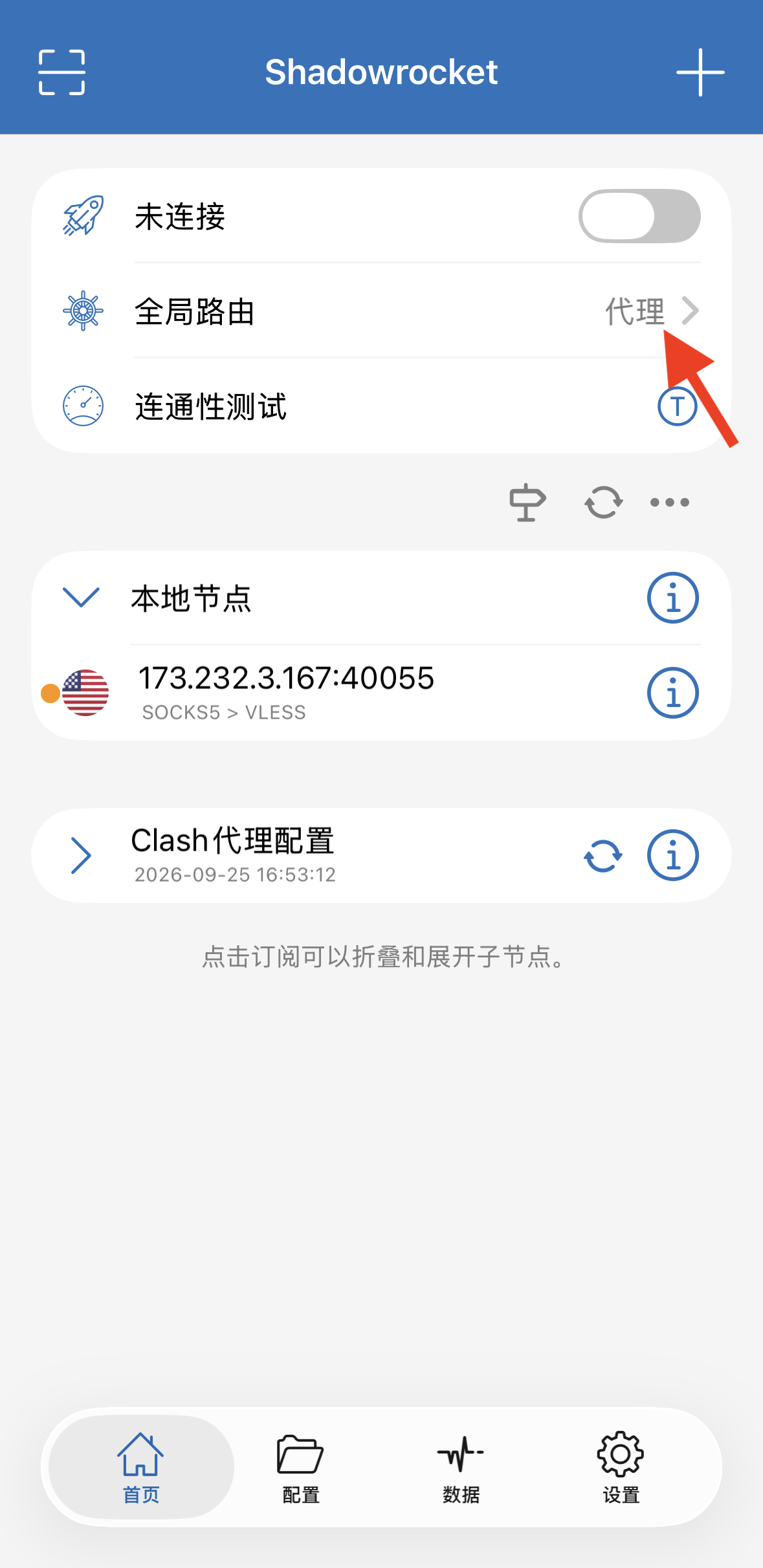
Open Global Routing
Back on Home, tap 全局路由 (Global Routing).
- 6
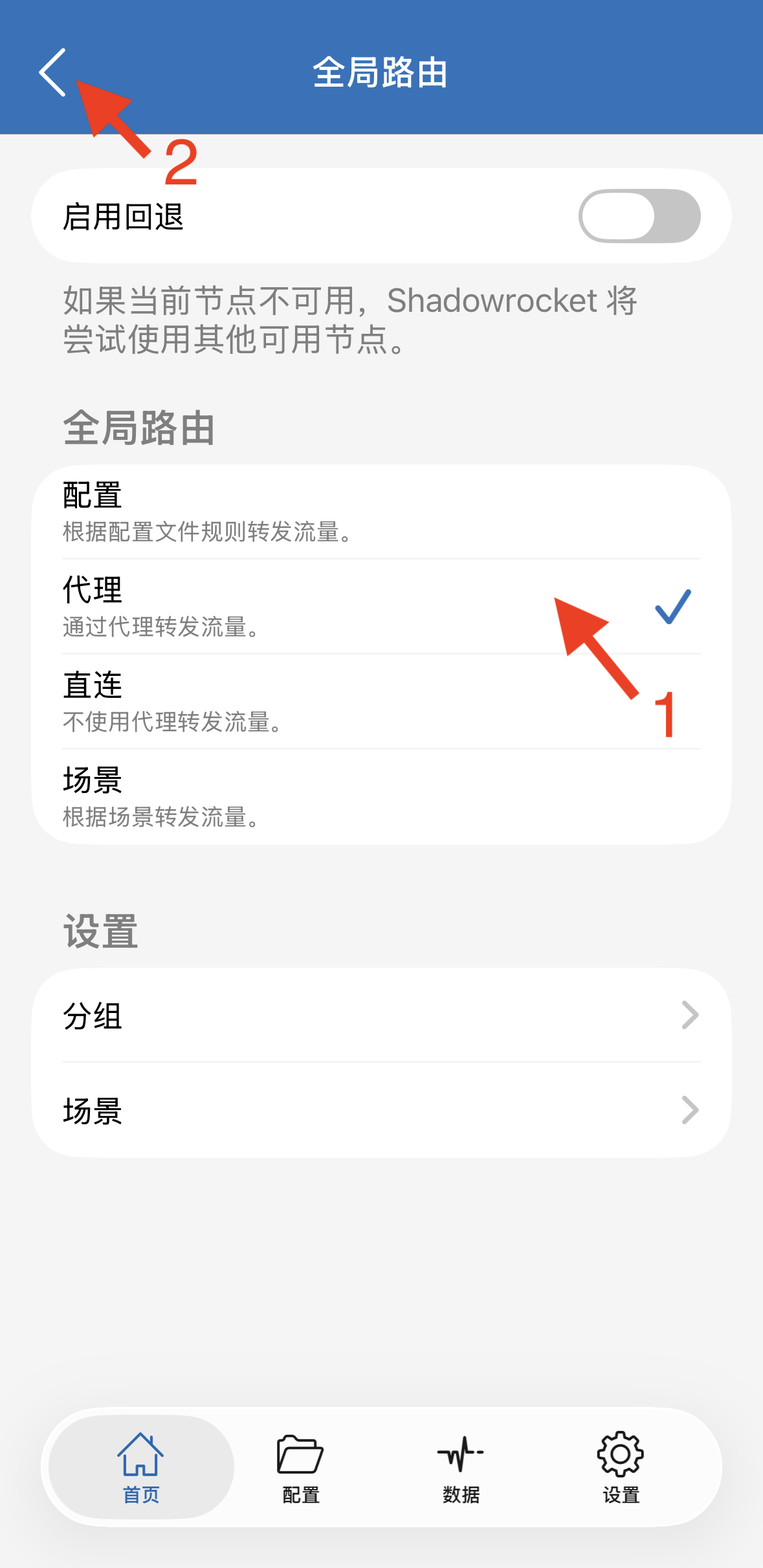
Select Proxy mode
Choose 代理 (Proxy), then use the back arrow to return to Home. This sends the browser’s test request through the selected node.
- 7
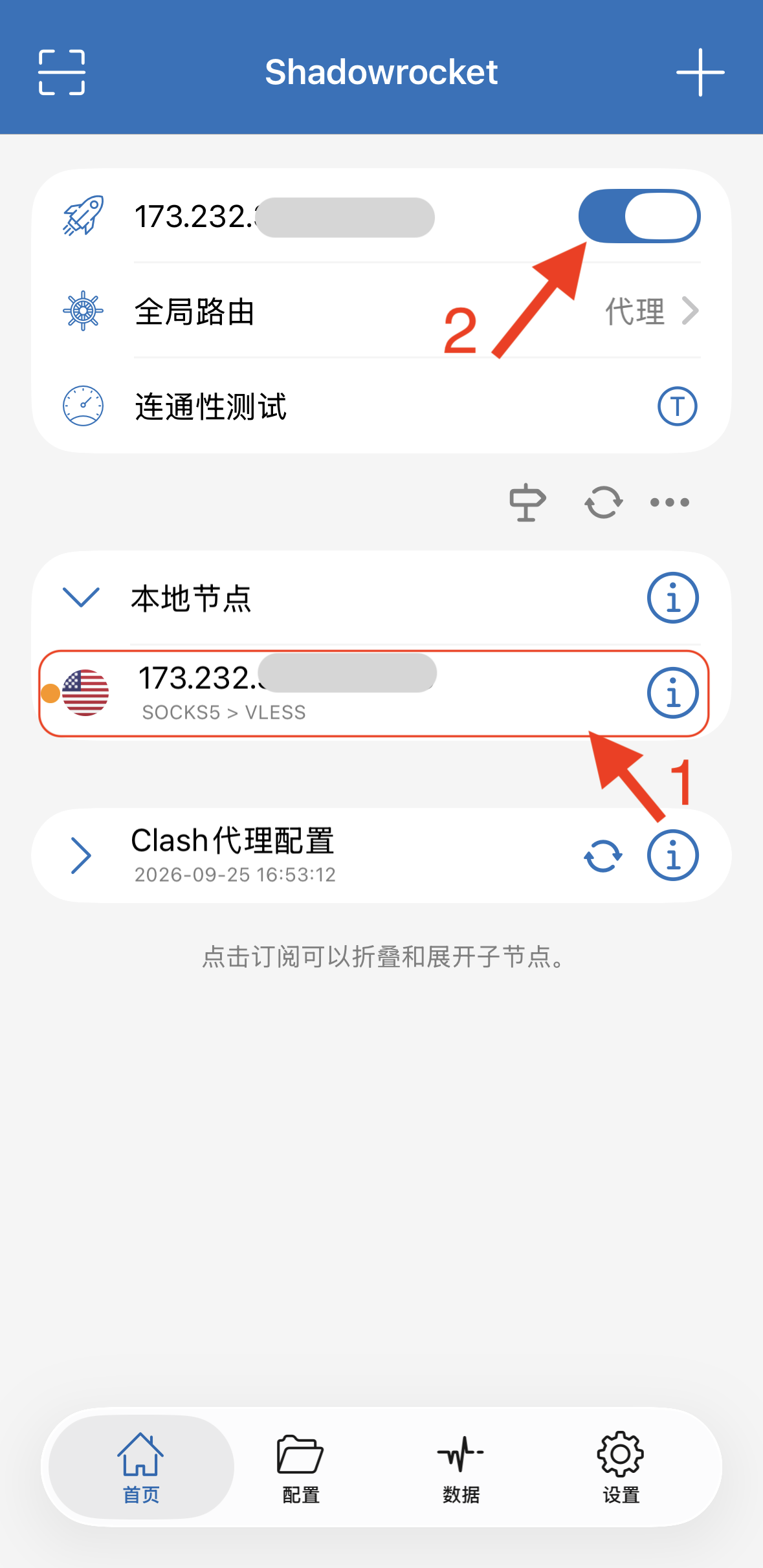
Select the new node and connect
On Home, tap the new Socks5 node so the selection marker is beside it. Check that Global Routing says 代理 (Proxy), then turn on the main switch. If iOS or iPadOS asks to add a VPN configuration, allow it. If the switch was already on while you changed a setting, turn it off and back on for the change to take effect.
8. Check your exit IP
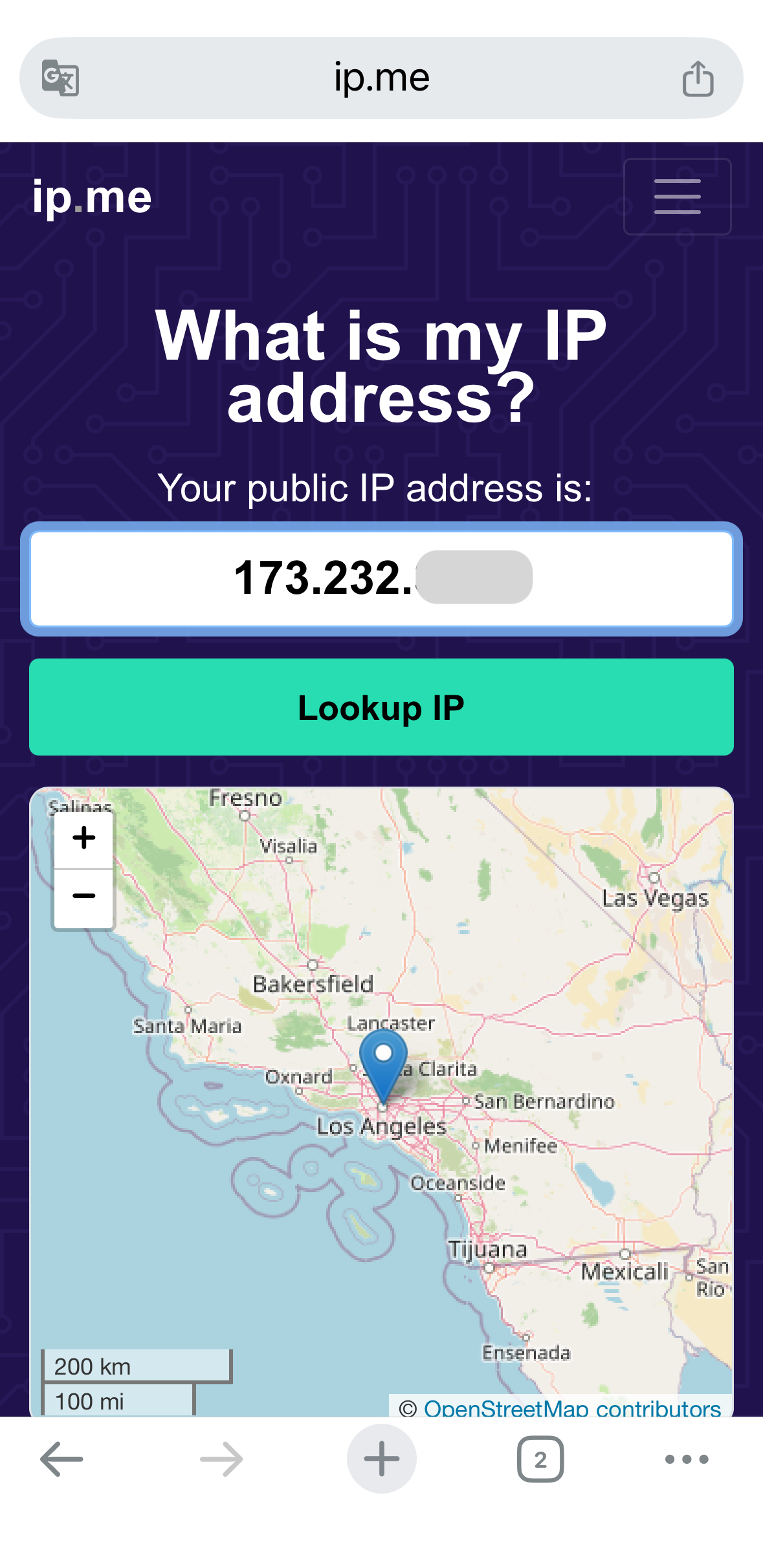
On the same iPhone or iPad that is connected to Shadowrocket, open an IP lookup site such as ip.me in its browser. The public IP should match the proxy IP in Dashboard → My Proxies. Compare the IP itself, not the port or the first-hop node name.
Troubleshooting
The new node does not connect
First test the existing node by itself. Then reopen the new Socks5 node and check its address, port, user, password, and Proxy Through selection. Save and reconnect.
The browser shows the original node’s IP
On Home, select the newly added Socks5 node, confirm Global Routing is set to Proxy, then turn the main switch off and on before checking again.
Changes did not take effect
Turn off the main connection switch, edit the node, tap Save, and then turn the switch on again.
The IP still does not match GetIPProxy
Confirm that the IP lookup was opened on the same iPhone or iPad that is connected to Shadowrocket. Check that the new Socks5 node is selected and compare the result with the proxy IP in Dashboard → My Proxies.
Configuration references
This independent GetIPProxy guide uses the app’s official listing for feature support and a community-maintained manual for control names. The community manual is not published by the developer.